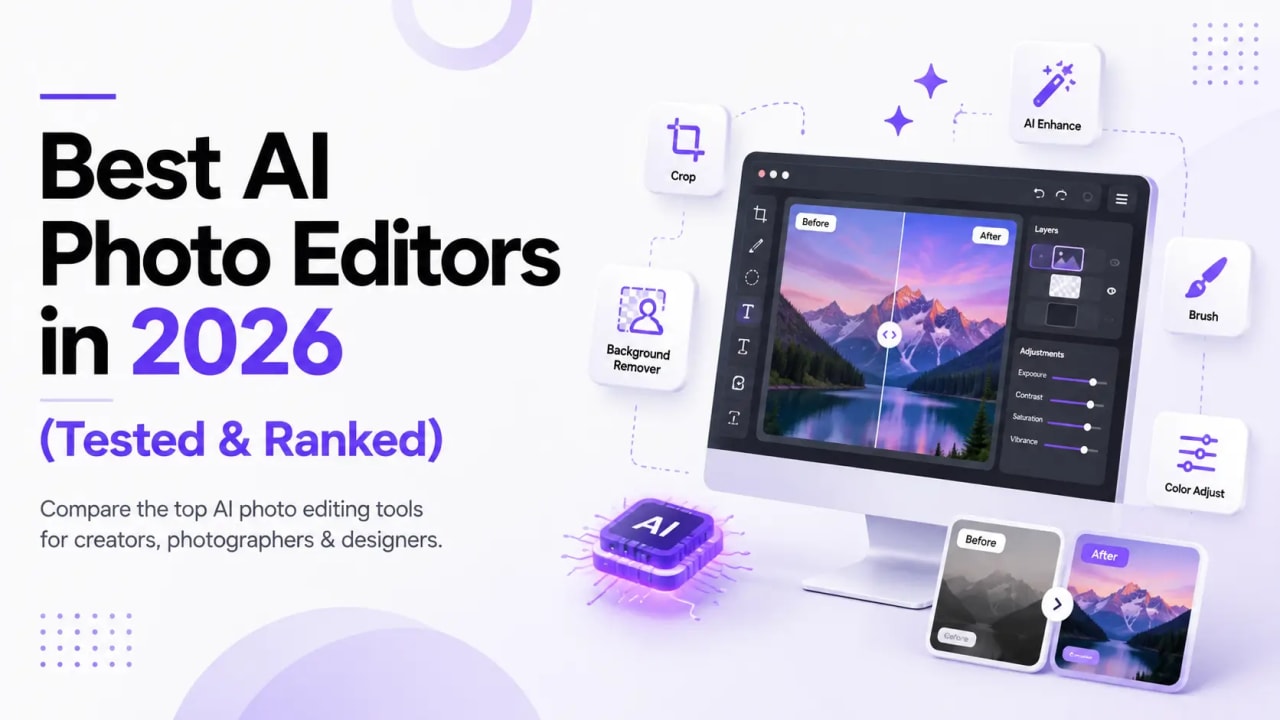
Best AI Photo Editors in 2026 (Tested & Ranked)
Looking for the best AI photo editor? We tested top picks for background removal, retouching, upscaling, and generative fill, grouped by job to be done, with honest notes on which tools are free versus paid.
On this page11 sections
The best AI photo editor depends on the job in front of you, not on a single winner that does everything.
For fast background removal and clean product shots, reach for Photoroom; for generative fill and object removal, Adobe Firefly leads.
Canva AI is the most complete all-in-one, Microsoft Designer is the best free place to start, and Sharpii.ai is our pick for upscaling and portrait retouching.
We grouped our picks by job below so you can jump straight to what you need.
Editor note (AInexfinder): Updated for 2026. We test and write for real workflows — not hype rankings. Author: Daniel Reed, Senior AI Tools Reviewer.
Illustrative graphic — not a product screenshot.
How We Picked
We judged each tool on the work people actually do with photos, then noted the honest trade-offs. Here is what mattered most to us:
Background removal that holds up on hair, edges, and messy backgrounds.
Retouching and object removal that looks natural, not smeared.
Upscaling that adds real detail instead of a plastic sheen.
Generative fill and expand for extending or reimagining a scene.
Free vs paid: what you truly get before a plan is required.
We leaned on hands-on testing plus what each tool is widely known to do well.
You can browse every option in the full image and design category, or test a few of the tools below side by side on your own photos.
Removing Backgrounds and Cleaning up Product Shots
Photoroom
Photoroom is built around one job it does very well: pulling a subject off its background quickly and cleanly.
It's the tool we recommend first for online sellers and anyone making product images at scale.
Pros
Fast, accurate background removal, even on tricky edges.
AI backgrounds, shadows, and batch editing for whole catalogs.
Mobile app plus web, so you can shoot and edit on a phone.
Cons
The strongest features (HD exports, batch, some AI tools) sit behind paid plans.
Less suited to detailed, layer-based photo editing.
Best for: e-commerce and social sellers who need many clean product images fast. Pricing: free tier to try it; paid plans for batch work and high-resolution exports.
Read more on the Photoroom tool page.
Generative Fill, Expand, and Object Removal
Adobe Firefly
When you need to remove an object, extend a photo, or paint in something new, Adobe Firefly is our top pick.
It powers Generative Fill and Generative Expand inside Photoshop, and it also runs as a standalone web app.
Pros
Strong generative fill and expand that blends with lighting and perspective.
Trained on Adobe Stock and openly licensed content, which Adobe positions as commercially safer.
Deep integration with Photoshop for precise, layer-level control.
Cons
Best results assume some Photoshop comfort and a Creative Cloud plan.
Free generative credits run out with heavy use.
Best for: designers and photographers who want serious retouching and generative editing. Pricing: free monthly generative credits; paid plans for heavy use and full Photoshop.
Free Quick Edits and Social Graphics
Microsoft Designer
Microsoft Designer is the best free starting point on this list.
With a Microsoft account you get text-to-image, background removal, generative erase, and restyle tools without paying up front.
Pros
Genuinely free to start with a Microsoft account.
Simple background removal and object erase for social posts.
Text-to-image built in for quick concepts.
Cons
Fewer fine controls than pro editors.
Generation speed and credits can be limited at busy times.
Best for: students, creators, and small teams who want free, fast edits and graphics. Pricing: free with a Microsoft account.
All-in-One Design and Editing
Canva AI
If you want editing plus everything around it, like layouts, text, and brand kits, Canva AI is the most complete package.
Its Magic Studio tools cover background removal, object erase (Magic Eraser), Magic Grab, and text-to-image.
Pros
One place to remove backgrounds, retouch, and finish a full design.
Beginner-friendly, with templates for social, print, and slides.
Strong free tier for casual use.
Cons
Advanced Magic tools and higher usage need Canva Pro.
Not a replacement for pixel-level professional retouching.
Best for: marketers, founders, and creators who want editing inside a design tool. Pricing: free tier; Pro unlocks more Magic tools and usage.
Illustrative graphic for skimming — pair with the advice above.
Generating and Editing Stock-Style Visuals
Freepik AI
Freepik's AI image generator is our pick when you need to create and edit stock-style assets in one place.
It offers text-to-image with several models, plus editing tools like upscaling, retouching, and background removal.
Pros
Multiple image models and a large library of assets and templates.
Built-in upscaler, background remover, and editing tools.
Free daily credits to experiment.
Cons
Output quality varies by model and prompt.
Higher resolution and volume need a paid plan.
Best for: marketers and content teams generating on-brand visuals at volume. Pricing: free daily credits; paid plans for more output and features.
See details on the Freepik AI page.
Upscaling and Portrait Retouching
Sharpii.ai
For enlarging images and cleaning up portraits, Sharpii.ai is a focused specialist.
It targets AI upscaling and skin retouching for fashion, beauty, and e-commerce shots.
Pros
Upscaling aimed at keeping detail rather than adding a plastic look.
Skin and portrait retouching tuned for people-heavy images.
Simple, task-focused workflow.
Cons
Narrower scope than an all-in-one editor.
Leans paid; check current trial or credit options before committing.
Best for: photographers and fashion or beauty brands who need clean upscales and retouching. Pricing: paid-focused; look for trial credits to test first.
Quick Comparison
Tool | Best job | Free tier | Standout feature |
|---|---|---|---|
Photoroom | Background removal, product shots | Yes | Fast cutouts and batch editing |
Adobe Firefly | Generative fill and expand | Free credits | Generative Fill in Photoshop |
Microsoft Designer | Free quick edits and graphics | Yes | Free with a Microsoft account |
Canva AI | All-in-one design and editing | Yes | Magic Studio editing tools |
Freepik AI | Stock-style image generation | Free credits | Multiple models plus editing tools |
Upscaling and portrait retouching | Limited / paid | Detail-preserving upscaling |
How to Choose the Best AI Photo Editor
Match the tool to the task, not the hype:
Just need clean cutouts and product shots? Start with Photoroom.
Serious retouching or generative fill? Adobe Firefly with Photoshop.
Want free and fast? Microsoft Designer.
Editing plus full design work? Canva AI.
Generating stock-style assets at volume? Freepik AI.
Upscaling and portrait polish? Sharpii.ai.
Most of these have a free tier, so the smartest move is to test two or three on your own images before you pay.
When you're ready to compare more options, browse the full AI tools directory at AInexfinder.
The best AI photo editor for you is the one that nails your most common job with the least effort.
How AInexfinder Keeps This Trustworthy
We only recommend tools that exist as approved listings on AInexfinder when we name specific products.
Pricing and plans change — treat listing types as a starting point and confirm on the vendor site.
Our review methodology covers discovery, verification, and keeping pages accurate.
Useful next steps on AInexfinder
Frequently Asked Questions
What Is the Best Free AI Photo Editor?
Microsoft Designer is the strongest fully free starting point, since a Microsoft account unlocks background removal, object erase, and text-to-image.
Canva AI and Photoroom also have useful free tiers, though their most powerful tools sit behind paid plans.
Which AI Tool Is Best for Removing Backgrounds?
Photoroom is our top pick for background removal, especially for product photos and batches.
Canva AI and Microsoft Designer also remove backgrounds well for one-off social graphics.
What Is the Best AI Photo Editor for Generative Fill?
Adobe Firefly, through Photoshop's Generative Fill and Generative Expand, gives the most natural results for adding, removing, or extending parts of an image.
Freepik AI is a solid alternative when you want to generate new visuals from scratch.
Can AI Upscale Low-Resolution Photos Without Making Them Look Fake?
Good upscalers can, up to a point.
Sharpii.ai and Freepik's upscaler aim to preserve real detail rather than add a plastic sheen, but results depend on the source. Very small or blurry originals will still have limits.
Are AI Photo Editors Safe to Use Commercially?
It depends on the tool and its terms.
Adobe Firefly is trained on Adobe Stock and openly licensed content, which Adobe positions as commercially safer.
Always check each tool's license and usage terms before you publish.
About
Daniel Reed
Senior AI Tools Reviewer
Daniel reviews AI tools the slow way — by actually using them on real projects. His reviews cover what works, what breaks, and who each tool is genuinely a good fit for.
View profile

