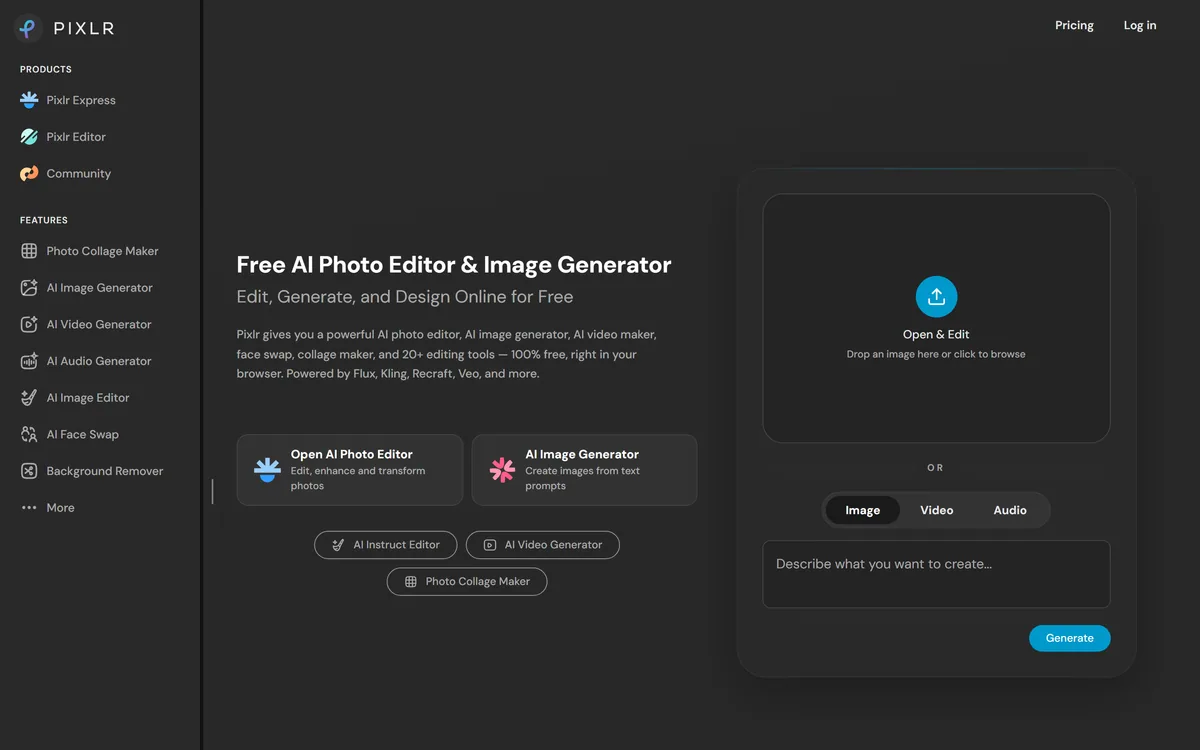
Pixlr is a photo editor that runs in a browser, and it has been doing that since long before generative AI existed. That history matters, because it means the AI features sit on top of real editing tools rather than standing in for them.
The current product spans two editors, a cleanup and enhancement set, and a generative layer covering fill, expansion, upscaling, face swap, and even video and audio.
This review covers what the editors actually do, which AI tools earn their place, how the free tier's limits bite, and where Pixlr genuinely beats both desktop software and pure AI generators.
| Company | Pixlr Pte Ltd |
|---|
| Category | Browser-based photo editor with generative AI |
|---|
| Editors | Pixlr Express for quick edits, Pixlr Editor for layer-based work |
|---|
| Generative tools | Generative Fill, Generative Expand, Generative Transform |
|---|
| Cleanup tools | Background Remover, Remove Object, Remove Noise |
|---|
| Enhancement | Super Scale upscaling |
|---|
| Also generates | Images, video, and audio; AI Face Swap and Sticker Maker |
|---|
| Platforms | Web browser, desktop, iOS, Android |
|---|
| Free plan | Yes — with ads, watermarks on some output, and limited AI credits |
|---|
| Paid tiers | Ad-free editing, no watermarks, larger AI credit allowance |
|---|
Two Editors For Two Different Jobs
Choosing the wrong one is the most common reason people bounce off Pixlr, and the distinction is not well signposted.
- Pixlr Express — crops, filters, quick corrections, and one-click fixes. Built for finishing something in two minutes.
- Pixlr Editor — layers, masks, and selection tools. Closer to a desktop editor, and the right choice for anything composited.
- Photo Collage Maker — multi-image layouts without building them by hand
- Sticker Maker — cut-outs for social and messaging use
- Design tools and templates — layout work rather than photo work
The layers matter more than the AI. Generative tools produce a result; layers let you disagree with it.
The generative list is long, and quality across it is uneven. A few are genuinely useful; others are there because the category expects them.
The Reliable Ones
Background Remover and Remove Object handle the two most common editing requests, and they work well enough that most people stop reaching for anything else.
Generative Expand is the quiet winner. Extending an image because your layout needs a different aspect ratio used to mean recomposing or cropping badly; now it does not.
The Situational Ones
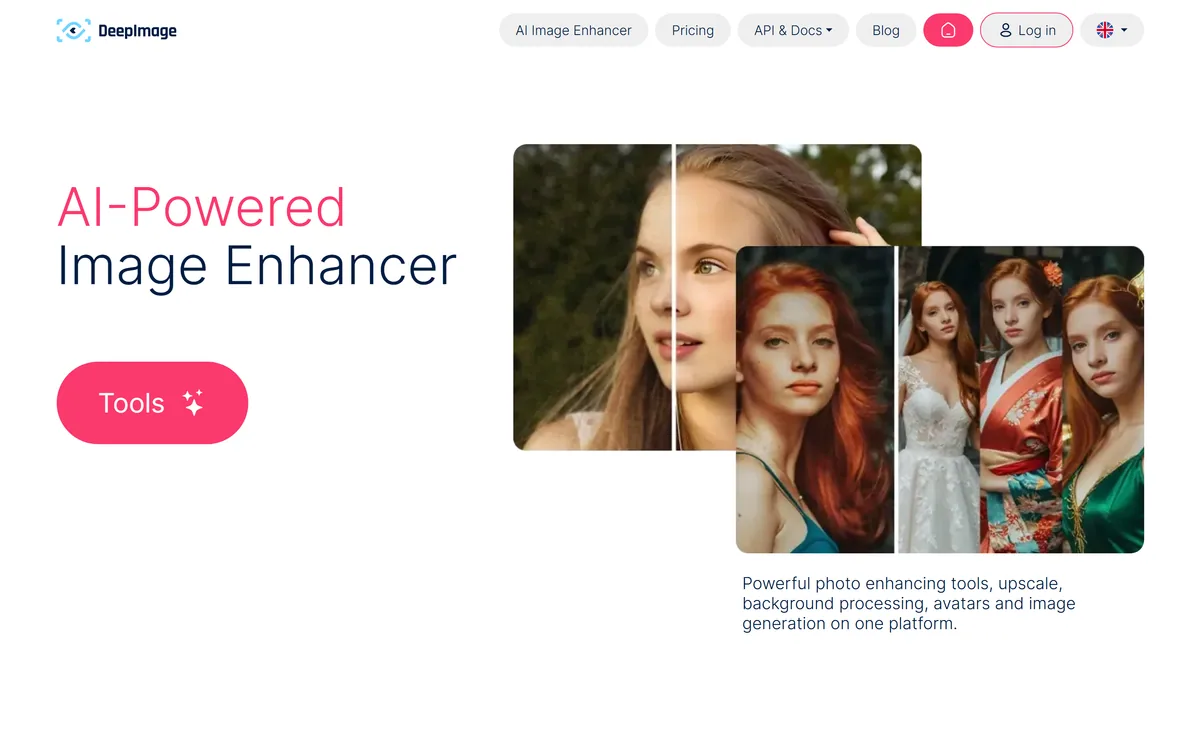
Super Scale upscaling helps with small or low-resolution source images, within limits — it cannot invent detail that was never captured.
Generative Fill and Generative Transform are capable on simple backgrounds and struggle on complex scenes, which is true of every implementation of this idea.
The Ones To Treat Sceptically
AI Face Swap raises consent questions before it raises quality questions. Swapping a face you do not have permission to use is a problem no feature toggle resolves.
Video and audio generation exist here but are not why anyone chooses Pixlr. Dedicated tools are substantially better at both.
The Free Tier, Honestly Described
Pixlr's free plan is genuinely usable, which is unusual, but the limits are worth knowing before you build a workflow on it.
You get ads during editing, watermarks on some output, and a small allowance of AI credits. Paid tiers remove the ads and watermarks and raise the credit allowance substantially.
The practical consequence is that traditional editing — crops, layers, colour, masking — is effectively free, while the generative tools are metered. That is a sensible split, and it means the free tier is a real editor rather than a demo.
The Case For A Browser Editor
Running in a browser sounds like a compromise until you need it. There are situations where installing software is not an option, and Pixlr is the answer to all of them.
- Open pixlr.com on whatever machine you are using — including a locked-down work laptop.
- Choose Express for a quick fix or Editor for anything involving layers.
- Drag the image straight in; no account is required to start.
- Do the traditional editing first — crop, correct, mask — before spending any AI credits.
- Apply generative tools last, so you are not regenerating after every adjustment.
- Export at the size you actually need rather than the maximum available.
Where It Runs Out Of Depth
Against professional desktop software, Pixlr is not close. Colour management, advanced masking, non-destructive workflows, and plugin ecosystems are all absent or thin, and for professional retouching that matters.
Browser performance sets a ceiling too. Very large files and complex multi-layer documents will be slower than a native application, and on a modest machine noticeably so.
Generative quality is mid-tier. Pixlr's AI tools are convenient because they are beside your editing tools, not because they beat dedicated generators.
And the free tier's watermarks catch people out — discovering one after finishing an export is a poor experience, so check before you invest time in a piece.
Who Should Use It
Pixlr fits the enormous middle ground between "crop it on my phone" and "open professional editing software". Social media creators, small businesses, teachers, and anyone editing occasionally.
It is also the pragmatic answer for people on locked-down or shared machines, on Chromebooks, or working across several computers.
For professional retouching, brand-critical imagery, or high-volume production, it is a supplement rather than a replacement.
These cover neighbouring parts of the same job.
- Canva AI — stronger for layouts, templates, and branded social content
- Adobe Firefly — commercially safe generation with Content Credentials attached
- Midjourney — far better generated imagery, with no editing tools at all
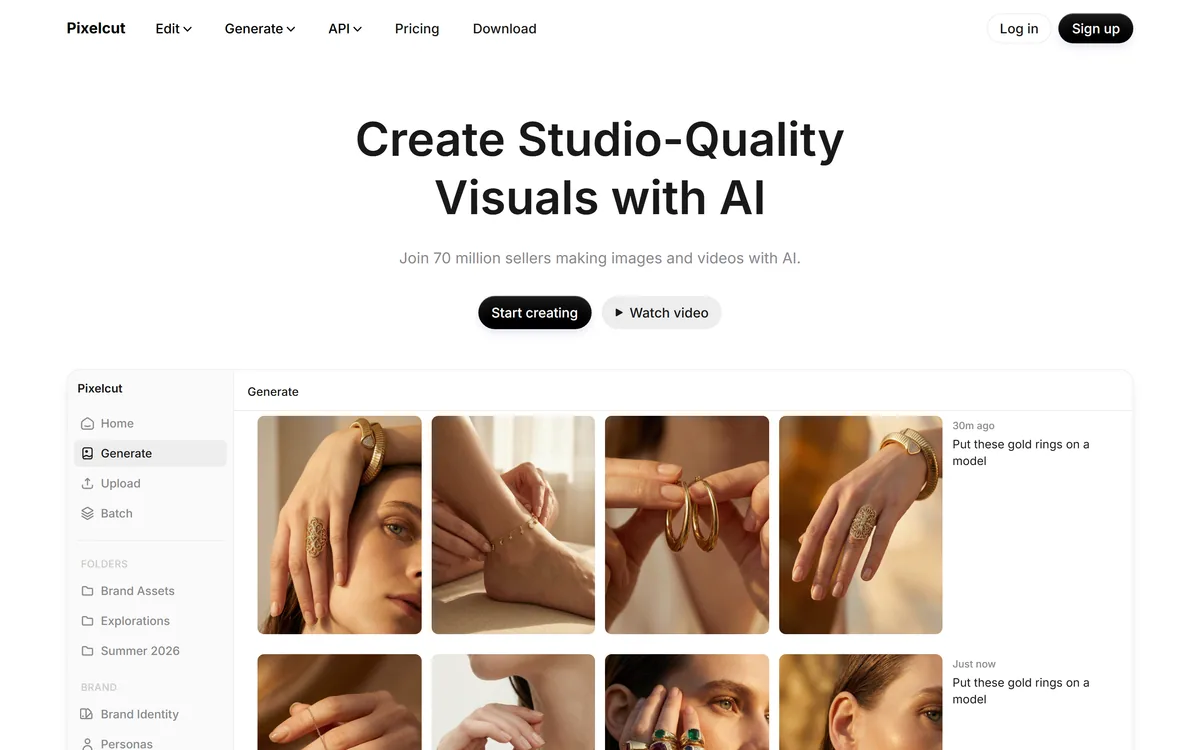
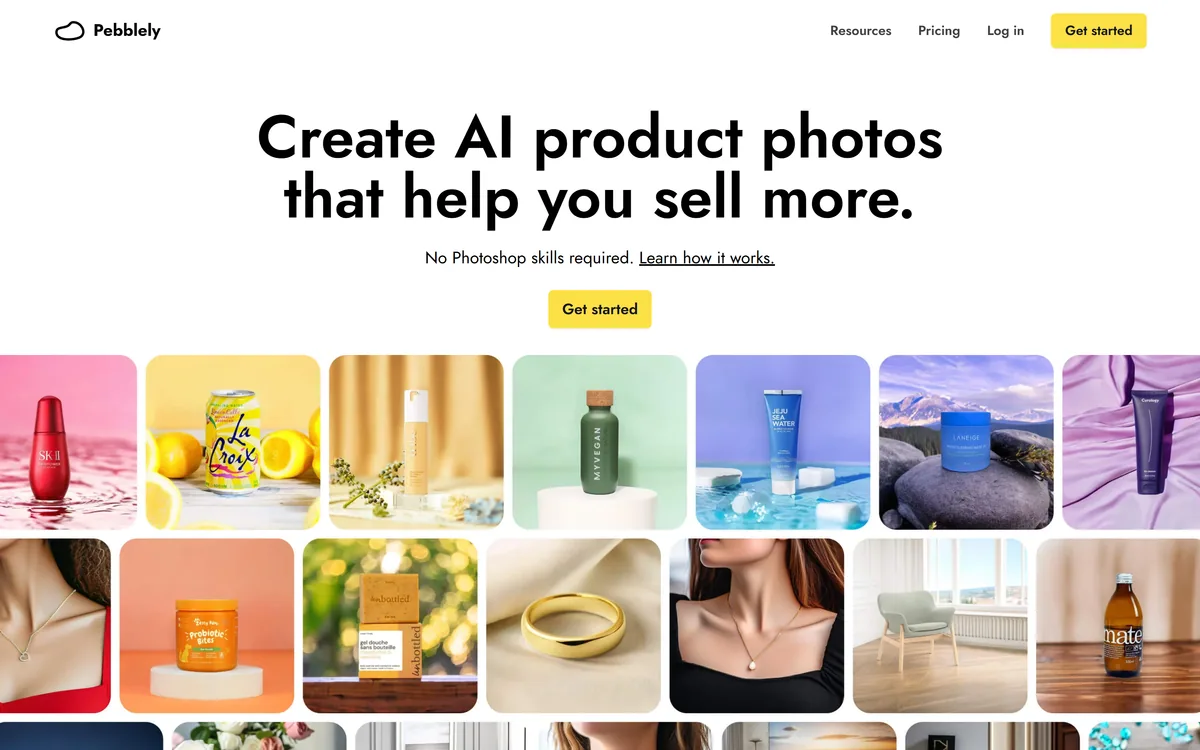
- Pixelcut — focused on product photography and e-commerce cut-outs