25 Best AI Image Upscalers and Photo Enhancers (2026)
There are two fundamentally different things happening under the label "AI upscaling", and the difference matters more than any quality comparison.

On this page30 sections
There are two fundamentally different things happening under the label "AI upscaling", and the difference matters more than any quality comparison.
Reconstructive upscaling recovers detail that is plausibly present in the pixels — sharpening edges, removing compression artefacts, interpolating intelligently. Generative upscaling invents detail that was never there.
It looks spectacular. It also means the pores on that face, the weave in that fabric and the text on that sign are fabrications.
For AI art, illustration and marketing imagery, invention is exactly what you want.
For a photograph of your grandmother, a product you are selling, evidence, or anything where the image is a record of something real, invention is a serious problem.
One of the most-loved tools on this list will happily reconstruct a face until it is recognisably a different person.
Every entry below says which kind it is.
Every Upscaler Here, Faithful or Generative
# | Tool | Best for | Pricing | Watch out |
|---|---|---|---|---|
1 | Large batch jobs | Freemium, usage-based | Costs scale with volume | |
2 | General cleanup plus upscaling | Freemium | Artefacts on complex removals | |
3 | Quick one-off enlargements | Freemium | Resolution limits on free | |
4 | Portrait touch-ups in a browser | Freemium | Limited free credits | |
5 | Highest quality, private processing | Paid, per tool or bundle | Needs strong hardware | |
6 | Automated image pipelines | Freemium | Overkill for one-off edits | |
7 | Free high-resolution enlargement | Free | Capacity limits under load | |
8 | Dramatic portrait rescue for social | Freemium | Can change the person's likeness | |
9 | Portrait and event photographers | Freemium, credit-based | Credits add up on big galleries | |
10 | One tool for many photo jobs | Freemium | Variable on badly damaged photos | |
11 | Removing unwanted objects | Freemium | Free tier capped at 720p | |
12 | Anime, illustration, line art | Freemium | Slow free tier | |
13 | Free, private, unlimited upscaling | Free, open-source | Performance depends on your GPU | |
14 | Damaged family photographs for print | Freemium | Results vary on severe damage | |
15 | Enlarging plus light restoration | Freemium | Free file-size limits | |
16 | Colourising historical photographs | Freemium | Colour is interpreted, not recovered | |
17 | High-volume event photography | Subscription, flat unlimited | Hardware requirements | |
18 | Consistent e-commerce catalogues | Subscription | Verify product accuracy | |
19 | Stills plus short video output | Freemium | Less specialised per tool | |
20 | Photo to finished social asset | Freemium | Less precise than pro editors | |
21 | Retouchers working in Photoshop | Paid, lifetime options | Costs stack per plugin | |
22 | Editing without knowing the terminology | Freemium, pay-as-you-go | Watermarked free output | |
23 | Small apparel brands | Subscription | Check fit on complex garments | |
24 | Large-format print output | Paid | Invented detail at extreme scale | |
25 | AI art and illustration | Subscription | Invents detail — never use for records |
How These Tools Were Shortlisted
These come from the photo enhancement category of the AInexfinder directory — 1,828 approved tools filtered and ranked by verified monthly traffic.
Alongside each entry you will find whether it reconstructs or generates, whether it processes locally or in the cloud, and where its results fall apart.
Local processing is worth flagging separately.
If you are restoring family photographs or handling client work under an NDA, uploading them to a free web service is a decision, not a default.
Two tools here run entirely on your own machine.
Which Upscaler for Which Image
If you want to… | Start with | Why |
|---|---|---|
Get the best possible quality | Topaz Labs (#5) | Best output, runs locally |
Upscale for free, forever | Upscayl (#13) | Open-source, offline, no limits |
Restore an old family photo | jpgHD (#14) or ImageColorizer (#16) | Purpose-built restoration and colourising |
Add dramatic detail to AI art | Magnific AI (#25) | Generative, invents texture beautifully |
Batch hundreds of images | Icons8 Smart Upscaler (#1) | Up to 500 images per batch |
Enlarge anime or illustration | Bigjpg (#12) | Separate model tuned for artwork |
Edit a whole wedding shoot | Aftershoot (#17) or Evoto (#9) | Cull, edit and retouch at gallery scale |
1. Icons8 Smart Upscaler — Built for Volume
Icons8's upscaler goes to 7680×7680 pixels with automatic noise reduction and sharpening, and — the reason it leads this category on traffic — processes up to 500 images per batch, with a Mac app for faster local runs and an API.
Batch capacity is the practical differentiator. Upscaling one image is a solved problem everywhere; upscaling an entire product catalogue without babysitting it is not.
Mostly reconstructive, so results stay faithful. Usage-based pricing adds up with heavy use, and it does one job rather than offering broader editing.
Key Features
AI upscaling up to 7680x7680 pixels
Automatic noise reduction and sharpening
Batch processing up to 500 images
Mac app for faster local batches
Pros and Cons
Pros: Strong batch processing for large jobs · Built-in denoise and sharpening · Web, Mac app and API access
Cons: Usage-based pricing adds up with heavy use · Focused on upscaling without broader editing
Pricing
Freemium, usage-based.
Type: reconstructive · Best for: large batch jobs · Watch out: costs scale with volume
Full Icons8 Smart Upscaler review · icons8.com/upscaler
2. SnapEdit — Cleanup First, Upscaling Included
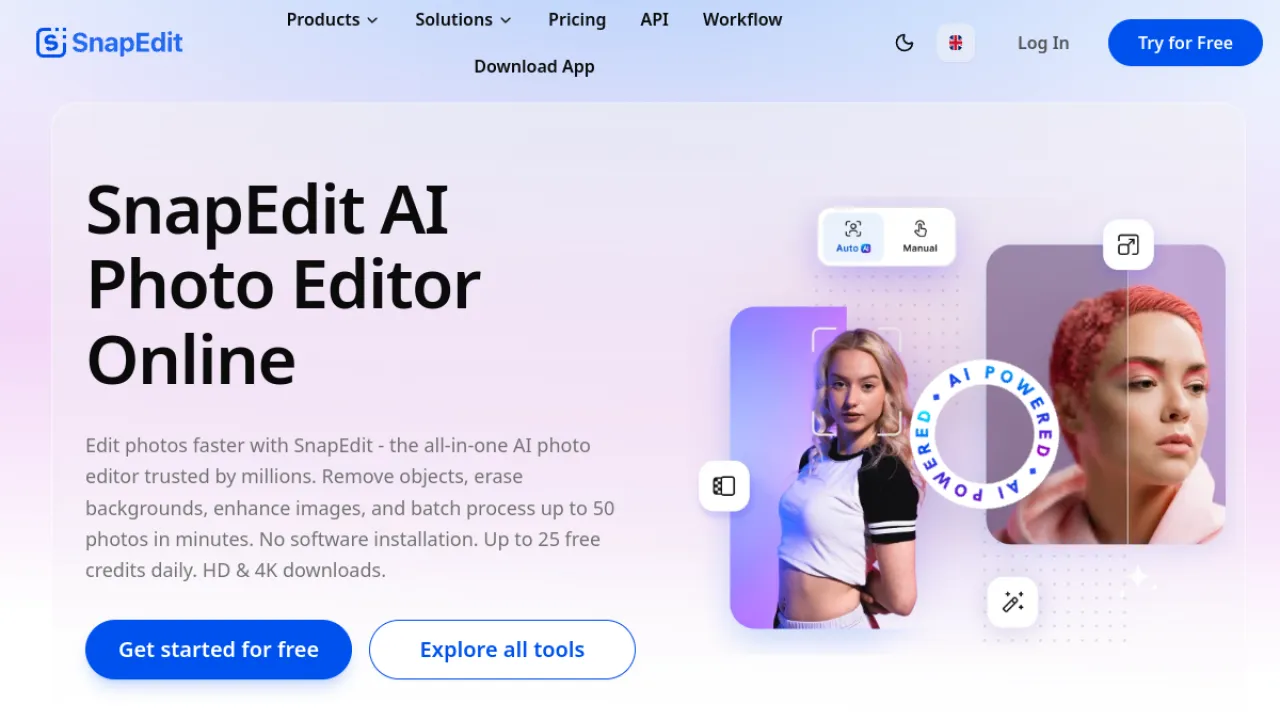
SnapEdit is an all-round browser editor: object and background removal, enhancement and upscaling, removal of text, wires and power lines, and AI skin retouching, with batch processing.
The wire and power-line removal is oddly specific and genuinely useful for architectural and landscape photography, where cables ruin otherwise clean shots.
Daily free credits are generous.
Advanced edits need a subscription, and complex removals leave artefacts — check the repaired area at full zoom before you ship anything.
Key Features
AI object and background removal
Photo enhancement and upscaling
Text, wire and power-line removal
AI skin retouching
Pros and Cons
Pros: Many editing tools in one browser app · Generous daily free credits · Batch processing for efficiency
Cons: Advanced edits need a paid subscription · Complex removals can leave artifacts
Pricing
Freemium.
Type: mixed · Best for: general cleanup plus upscaling · Watch out: artefacts on complex removals
Full SnapEdit review · snapedit.app
3. Upscale.media — The Convenient Default
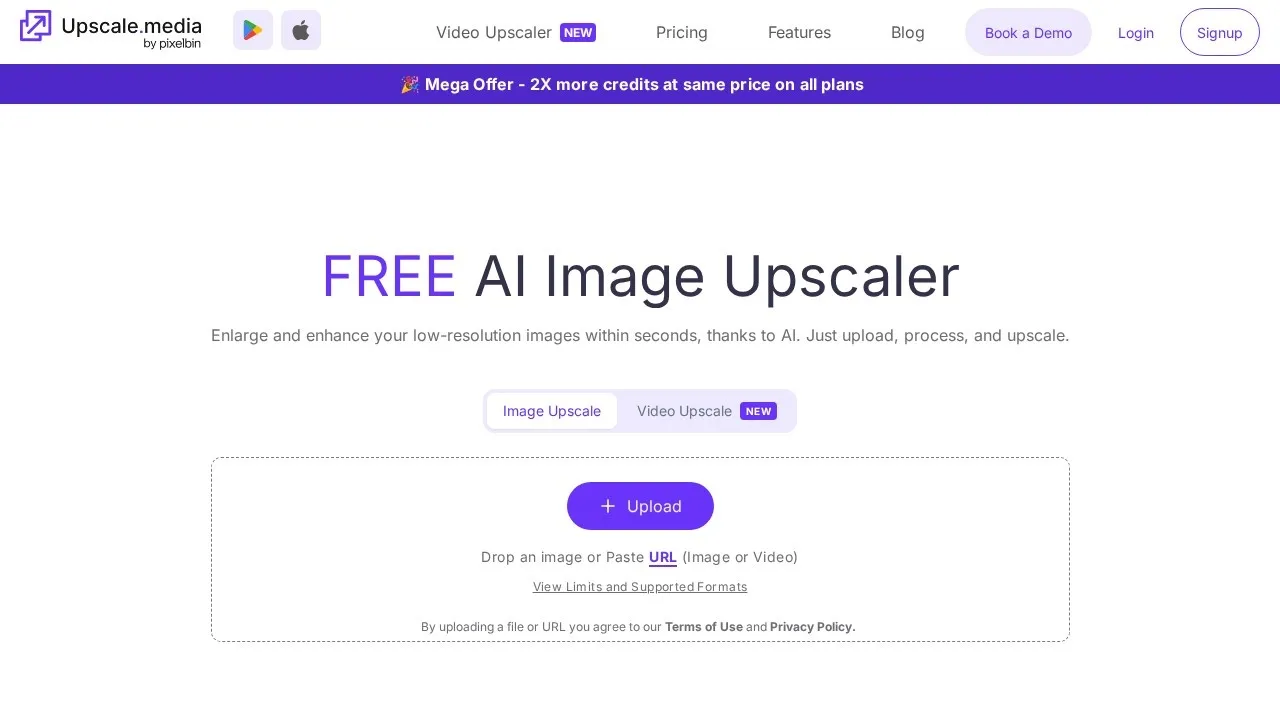
Upscale.media handles 2x, 4x and 8x upscaling with face restoration, deblur, dehaze and sharpen tools, and bulk processing, all in the browser with a usable free tier for guests.
There is nothing to install and nothing to sign up for, which makes it the tool people reach for when they need one image fixed now.
Free tier limits resolution and features.
Heavily degraded source images show artefacts — the general rule across this whole category is that upscaling amplifies whatever is already there, including the problems.
Key Features
AI upscaling at 2x, 4x, and 8x
Face restoration and enhancement
Deblur, dehaze, and sharpen tools
Bulk image processing
Pros and Cons
Pros: Convenient no-install browser workflow · Usable free tier for guests · Broad enhancement options beyond upscaling
Cons: Free tier has resolution and feature limits · Heavily degraded images can show artifacts
Pricing
Freemium.
Type: reconstructive · Best for: quick one-off enlargements · Watch out: resolution limits on free
Full Upscale.media review · upscale.media
4. YouCam AI Photo Editor — Portraits, in the Browser
YouCam covers enhancement and upscaling, object removal with background reconstruction, background removal, colourisation, outfit try-on and photo animation, with face-aware restoration for portraits.
Face-aware handling is the reason to pick it over a generic upscaler for people photos — generic models often smooth faces into plastic.
Free credits are limited before you pay, and it is less precise than a professional desktop editor. Convenient rather than exacting.
Key Features
AI photo enhancement and upscaling
Object removal with background reconstruction
AI background removal and colorization
Outfit try-on and photo animation
Pros and Cons
Pros: Wide range of AI tools in one browser app · Face-aware restoration for portraits · No download required to start
Cons: Limited free credits before paying · Less precise than pro desktop editors
Pricing
Freemium.
Type: mixed, generative on faces · Best for: portrait touch-ups in a browser · Watch out: limited free credits
Full YouCam review · yce.perfectcorp.com
5. Topaz Labs — The Quality Benchmark

Topaz is what professionals use.
Gigapixel handles extreme image enlargement, Photo AI addresses noise, blur and detail, Topaz Video enhances footage to 4K, and Astra and Bloom add creative upscaling modes.
It processes locally.
Local processing is a substantial and underrated advantage: nothing uploads, so client work under NDA and personal photographs stay on your machine, and there are no per-image costs.
It demands capable hardware for reasonable speed, and buying several tools gets expensive.
If output quality is the deciding factor, this is the answer.
Key Features
Gigapixel image upscaling up to many times resolution
Photo AI noise, blur, and detail enhancement
Topaz Video enhancement up to 4K
Creative upscaling modes in Astra and Bloom
Pros and Cons
Pros: Best-in-class image and video output quality · Choice of individual tools or a full bundle · Processes locally for privacy and control
Cons: Demanding hardware needed for fast processing · Costs add up when multiple tools are required
Pricing
Paid, per tool or bundle.
Type: reconstructive, with creative modes · Best for: highest quality, private processing · Watch out: needs strong hardware
Full Topaz Labs review · topazlabs.com
6. Pixelbin — Enhancement Wired Into Delivery
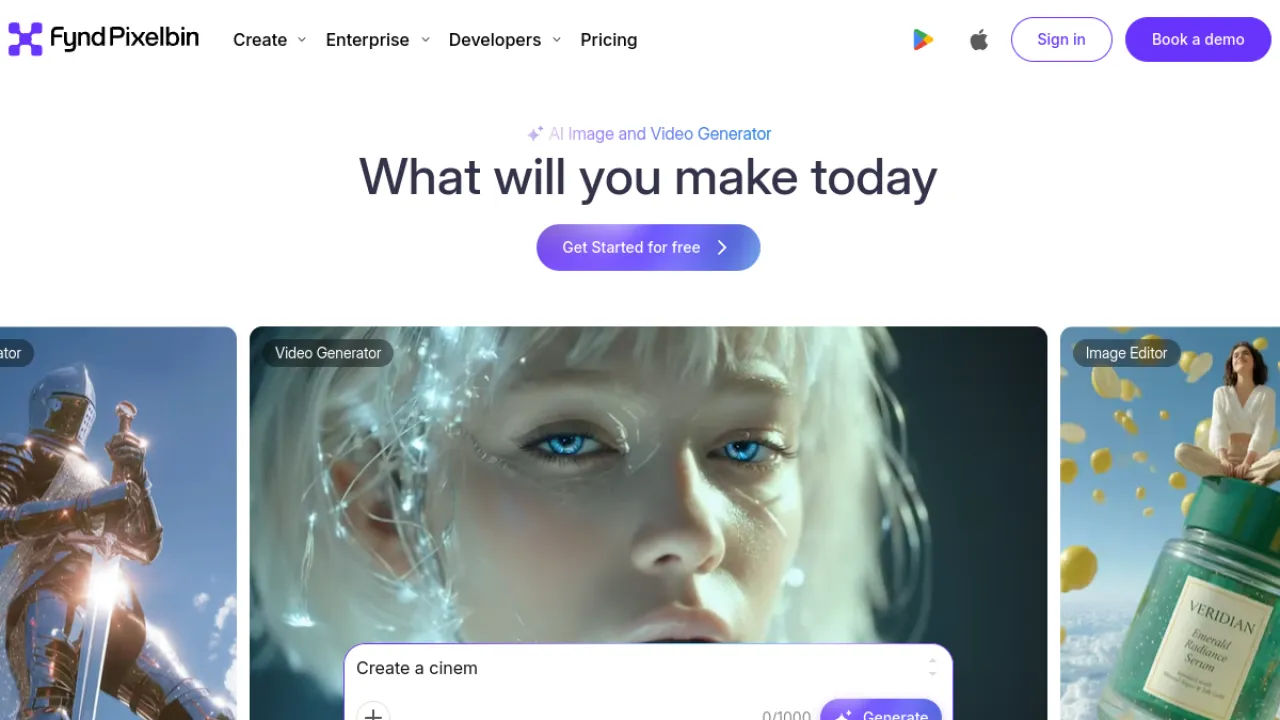
Pixelbin combines prompt-based AI editing, background removal, upscaling and sharpening, and watermark removal with digital asset management and a smart CDN that delivers the processed images.
Editing and delivery in one platform is the developer-oriented pitch: transformations happen through URL parameters and an API rather than a manual export cycle, which is how image pipelines actually work at scale.
It feels complex for a single one-off edit, and full features need a paid plan.
Key Features
Prompt-based AI image editing
Background removal, upscaling and sharpening
Watermark removal and selective editing
Digital asset management and smart CDN delivery
Pros and Cons
Pros: Combines editing, optimization and delivery in one platform · Developer-friendly transformation and API approach · Broad set of AI editing tools
Cons: Can feel complex for simple one-off edits · Full features and volume need a paid plan
Pricing
Freemium.
Type: reconstructive · Best for: automated image pipelines · Watch out: overkill for one-off edits
Full Pixelbin review · pixelbin.io
7. ImgUpscaler — Free, up to 16K
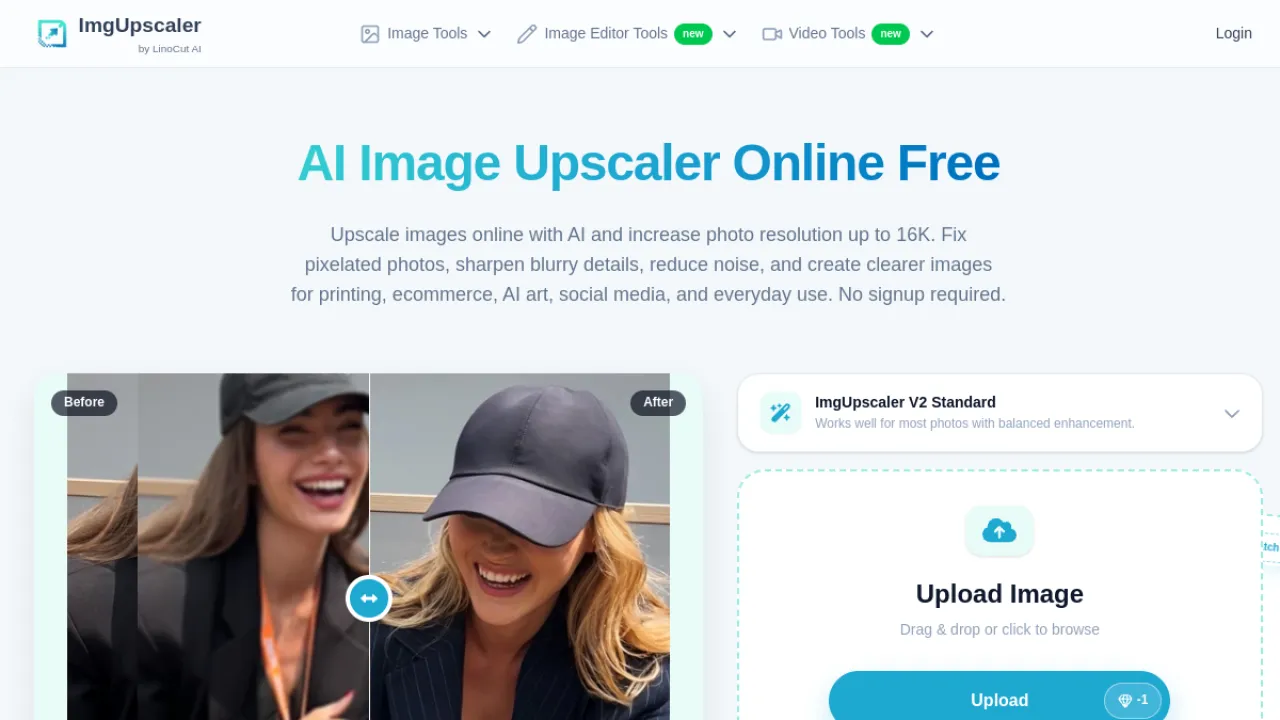
ImgUpscaler upscales to a claimed 16K with blur and pixelation removal, face and portrait enhancement, and text sharpening for screenshots — free, with no signup.
Text sharpening for screenshots is the useful specific: recovering readable text from a low-resolution screen capture is a common need most upscalers handle badly.
Availability may be limited under heavy demand, as is normal for free services, and very low-quality sources still produce artefacts.
Key Features
AI upscaling up to 16K resolution
Blur and pixelation removal
Face and portrait enhancement
Text sharpening for screenshots
Pros and Cons
Pros: Free with no signup required · High claimed maximum resolution · Targeted face and text enhancements
Cons: Possible limits under heavy demand · Very low-quality sources can show artifacts
Pricing
Free.
Type: reconstructive · Best for: free high-resolution enlargement · Watch out: capacity limits under load
Full ImgUpscaler review · imgupscaler.ai
8. Remini — Spectacular, and the One to Be Careful With
Remini is the best-known photo enhancer for a reason: it takes a blurry, low-resolution portrait and produces something startlingly sharp, with unblur, denoise, old-photo restoration, colourisation and enlargement, on iOS, Android and web.
It does this by reconstructing faces generatively, and that is the caveat that deserves more attention than it gets.
Aggressive reconstruction can alter likeness — the result may be a sharp photograph of someone who looks subtly, or not so subtly, like a different person. For social media, wonderful.
For a family archive or any photograph that documents a real person, compare carefully against the original before you replace it. The free tier has ads, limits and watermarks.
Key Features
AI face enhancement and reconstruction
Unblur, sharpen, and denoise
Old photo restoration and colorization
Image enlarging and background enhancement
Pros and Cons
Pros: Strong portrait and old-photo restoration · Easy mobile-first experience · Available on iOS, Android, and web
Cons: Free tier has ads, limits, and watermarks · Aggressive face reconstruction can alter likeness
Pricing
Freemium.
Type: generative · Best for: dramatic portrait rescue for social · Watch out: can change the person's likeness
Full Remini review · remini.ai
9. Evoto — Retouching for Working Photographers
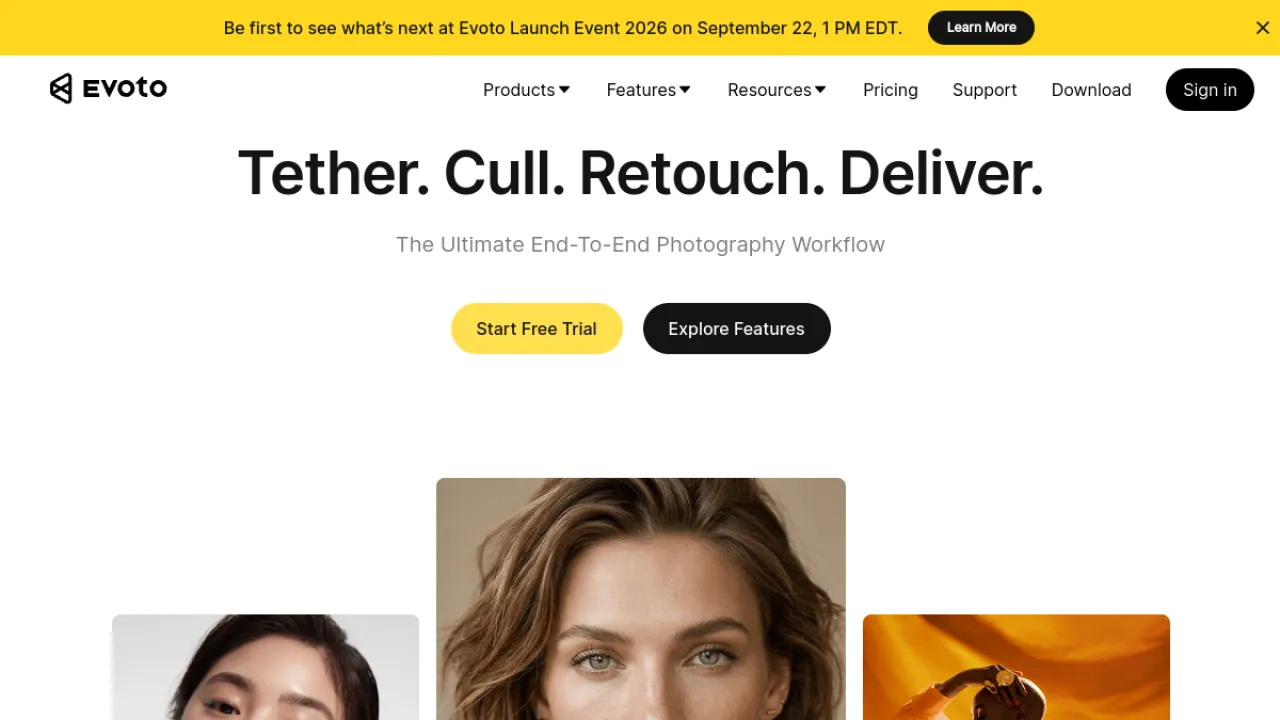
Evoto handles culling and selection, per-face portrait retouching that preserves texture, consistent colour grading across a shoot, and batch processing for entire galleries.
Per-face retouching in a group photo is the hard problem it solves: a wedding shot with twelve people needs twelve different corrections, and doing that by hand is hours of work.
Texture preservation avoids the plastic look that makes AI retouching obvious.
Credit costs accumulate at high volumes, and it deletes images after processing, which matters for client confidentiality.
Key Features
AI photo culling and selection
Per-face portrait retouching with texture preservation
Consistent AI color grading across shoots
Batch processing for entire galleries
Pros and Cons
Pros: Major time savings on bulk retouching · Natural results that avoid over-processing · Privacy-focused with image deletion after processing
Cons: Credit costs accumulate at high volumes · Geared to professionals, not casual users
Pricing
Freemium, credit-based.
Type: reconstructive retouching · Best for: portrait and event photographers · Watch out: credits add up on big galleries
10. Nero AI — The Widest Toolbox
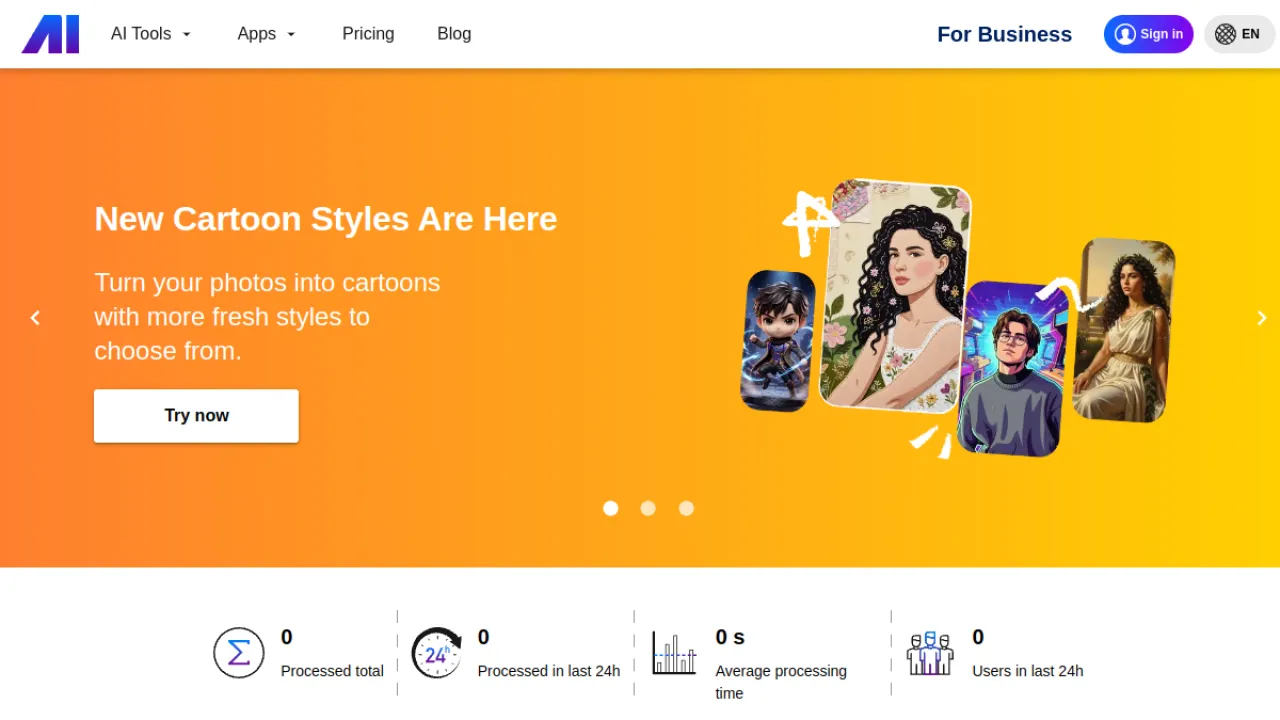
Nero AI upscales to 16K and adds restoration, colourisation, face enhancement, background removal and generation, and object removal, across web, desktop and mobile.
Breadth is the offer — most jobs you would otherwise split across three tools happen here.
Free tier limits resolution and usage, and results vary considerably on severely damaged images.
A reasonable single-tool answer if you do a bit of everything rather than a lot of one thing.
Key Features
Image upscaling up to 16K resolution
Photo restoration, colorization, and face enhancement
AI background removal, generation, and object removal
Web, desktop, and mobile applications
Pros and Cons
Pros: Very wide range of tools in one platform · High maximum upscaling resolution · Available across web, desktop, and mobile
Cons: Free tier has resolution and usage limits · Results vary on severely damaged images
Pricing
Freemium.
Type: mixed · Best for: one tool for many photo jobs · Watch out: variable on badly damaged photos
Full Nero AI review · ai.nero.com
11. Cleanup.pictures — Remove Things, Cleanly
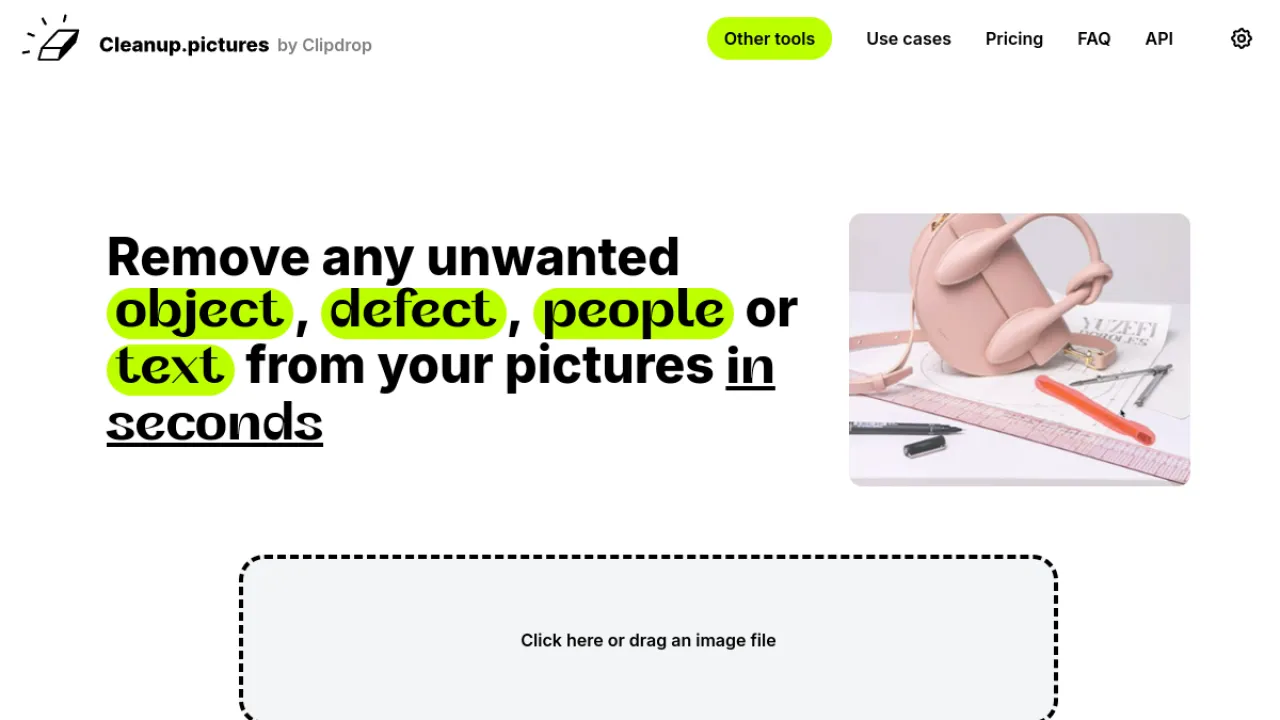
Cleanup.pictures does inpainting: brush over an object, a person, text, a logo or a watermark and it reconstructs what should be behind it.
Free unlimited images at 720p, with an API for developers.
The interface is about as simple as software gets, and the inpainting quality at that level of effort is the appeal.
Free output is capped at 720p, which rules out print use without paying. It is specialised for removal and does not attempt full editing.
Key Features
AI inpainting object and people removal
Removes text, logos and watermarks
Simple brush-based drag-and-drop interface
Free unlimited images at 720p
Pros and Cons
Pros: High-quality inpainting with minimal effort · Usable free tier with unlimited images · API available for developers
Cons: Free tier limited to 720p resolution · Specialized for removal, not full editing
Pricing
Freemium.
Type: generative inpainting · Best for: removing unwanted objects · Watch out: free tier capped at 720p
Full Cleanup.pictures review · cleanup.pictures
12. Bigjpg — The One That Understands Anime
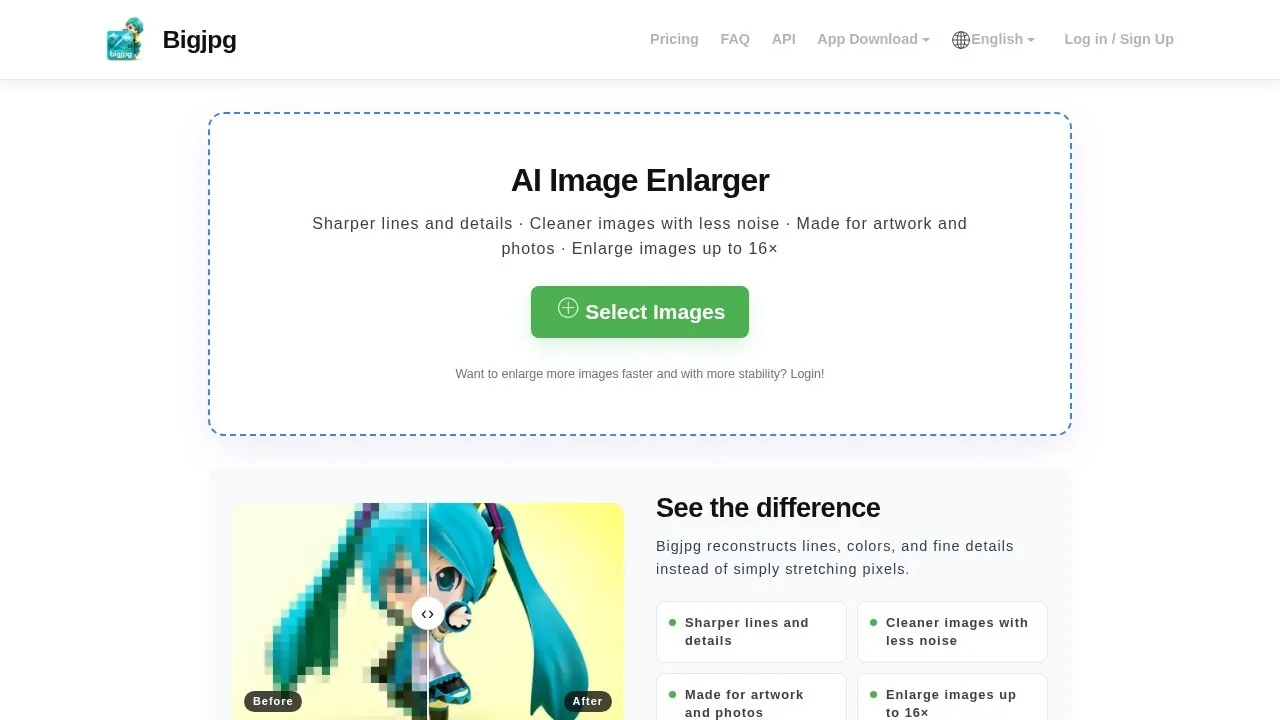
Bigjpg runs separate models for artwork and photographs, with noise and serration reduction and batch processing on paid tiers.
That separation matters.
Illustration and anime have flat colour regions and clean line work that photo-trained models mangle — they add noise where there should be flat colour and soften lines that should stay crisp.
Bigjpg's artwork mode handles this properly, which is why it remains the standard recommendation for enlarging illustration.
The free tier is slow with size and quota limits, and it is soft on very blurry or heavily compressed sources.
Key Features
AI deep-learning image upscaling
Separate modes for artwork and photos
Noise and serration reduction
Batch image processing for paid users
Pros and Cons
Pros: Specialized handling of anime and illustration artwork · Cleaner enlargement than basic interpolation tools · Free tier available for occasional use
Cons: Free tier is slow with image-size and quota limits · Soft results on very blurry or heavily compressed sources · No editing features beyond upscaling
Pricing
Freemium.
Type: reconstructive · Best for: anime, illustration, line art · Watch out: slow free tier
Full Bigjpg review · bigjpg.com
13. Upscayl — Free, Open-Source, Entirely Offline
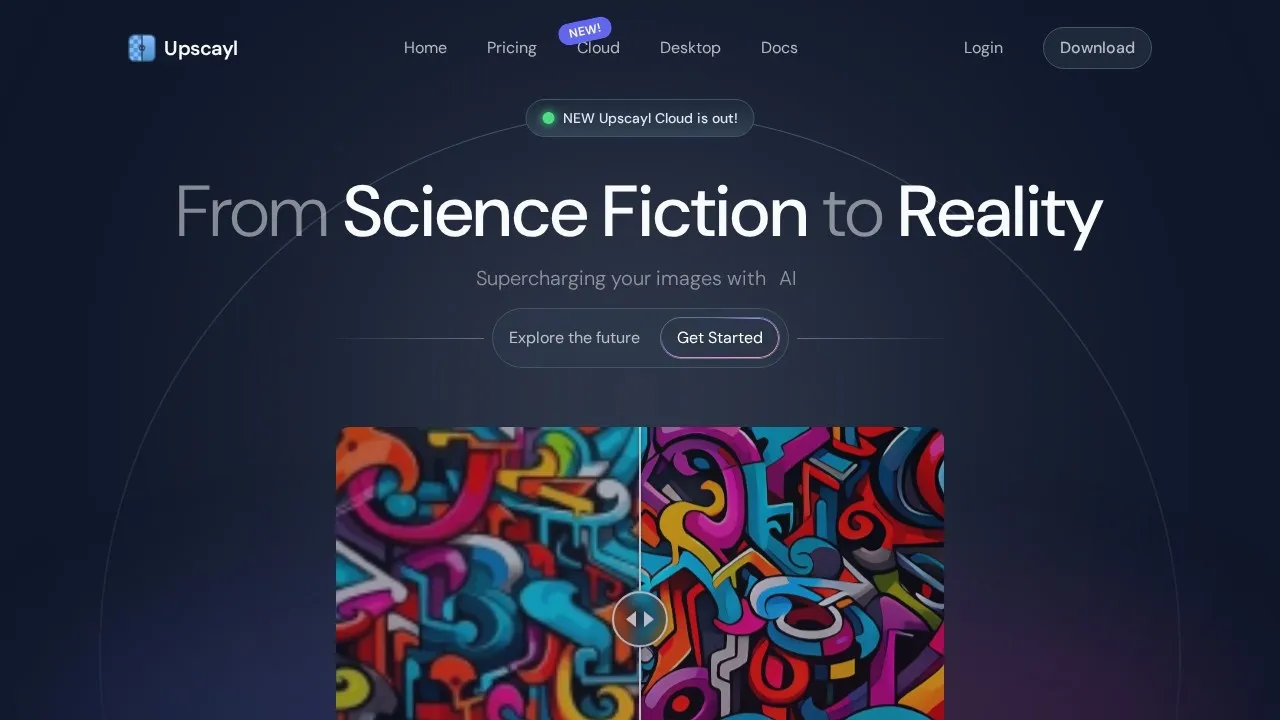
Upscayl runs multiple ESRGAN-based models locally on your own machine with GPU acceleration and batch processing.
It is free, open-source, has no usage limits and no watermarks, and nothing you process ever leaves your computer.
For personal photographs, client work under NDA, or anyone who simply dislikes uploading images to a free web service, that combination is difficult to beat at any price.
Performance depends on your GPU, and it does one thing without broader cloud editing features.
If you have a reasonable graphics card, try this before paying for anything.
Key Features
Local offline AI upscaling
Multiple ESRGAN-based models
Batch processing of images
GPU-accelerated performance
Pros and Cons
Pros: Completely free and open source · Keeps images private by running locally · No usage limits or watermarks
Cons: Performance depends on GPU and hardware · Lacks broader cloud editing features · Feature set can be simpler than premium alternatives
Pricing
Free, open-source.
Type: reconstructive · Best for: free, private, unlimited upscaling · Watch out: performance depends on your GPU
Full Upscayl review · upscayl.org
14. jpgHD — Serious Old-Photo Restoration
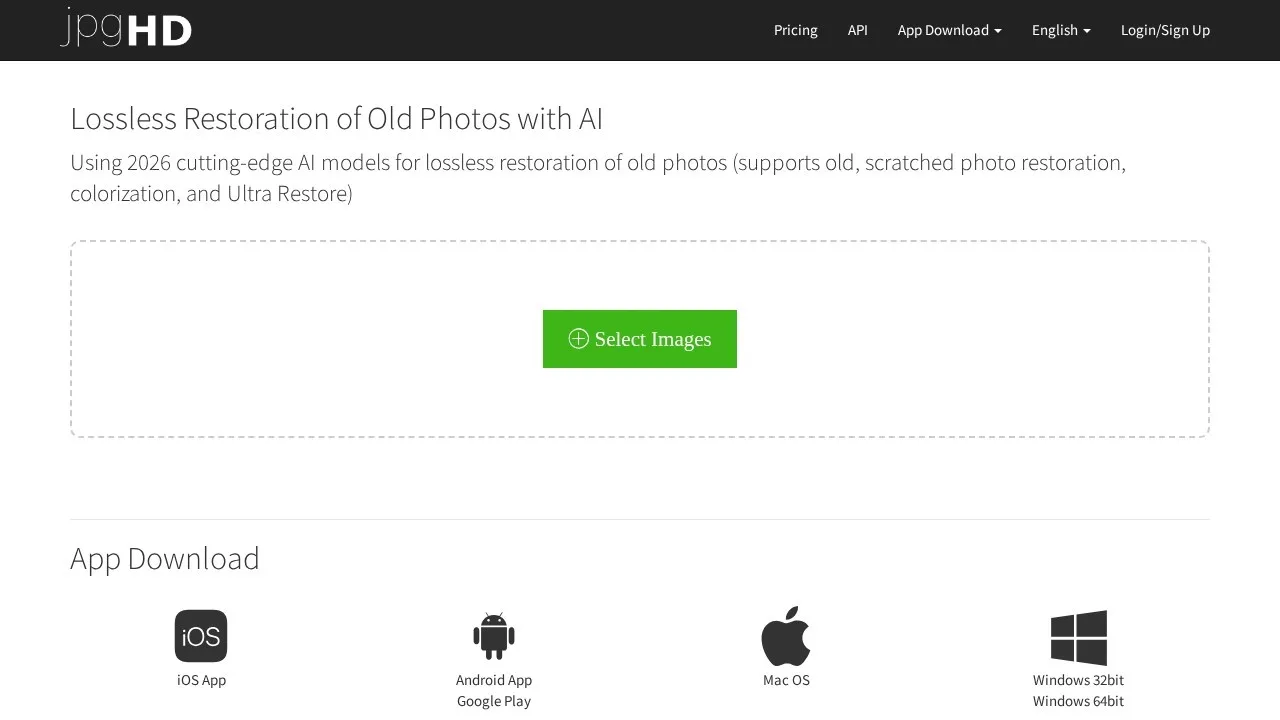
jpgHD handles old photo restoration and scratch repair, black-and-white colourisation, an Ultra Restore mode for heavy damage, and lossless 2x and 4x super resolution.
Lossless upscaling matters if the restored photo is going to be printed and framed rather than posted.
Ultra Restore is aimed at genuinely damaged originals — creases, tears, water damage — where general-purpose tools give up.
The free tier is limited in count and resolution, and results vary on heavily damaged originals, which is honest rather than disappointing.
Key Features
Old photo restoration and scratch repair
Black-and-white colorization
Ultra Restore high-end repair mode
Lossless 2x and 4x super resolution
Pros and Cons
Pros: Comprehensive restoration including Ultra Restore · Lossless upscaling for printing · Flexible global payment options
Cons: Free tier limited in count and resolution · Results vary on heavily damaged originals
Pricing
Freemium.
Type: generative restoration · Best for: damaged family photographs for print · Watch out: results vary on severe damage
15. Imglarger — Enlargement Plus a Restoration Kit
Imglarger upscales to 8x and adds old-photo restoration, colourisation, background removal, face retouching, batch processing and format conversion, deleting uploaded images automatically after 24 hours.
The automatic deletion policy is a small thing worth noticing in a category where you upload personal photographs.
Free tier limits resolution and file size, and results vary on heavily damaged images. A solid mid-range all-rounder without a standout feature.
Key Features
AI upscaling up to 8x
Old-photo restoration and colorization
Background removal and face retouching
Batch processing and format conversion
Pros and Cons
Pros: Wide range of enhancement tools in one place · Batch processing support · Automatic image deletion after 24 hours
Cons: Free tier limits resolution and file size · Results vary on heavily damaged images
Pricing
Freemium.
Type: mixed · Best for: enlarging plus light restoration · Watch out: free file-size limits
Full Imglarger review · imglarger.com
16. ImageColorizer — Colour for Black-and-White Archives
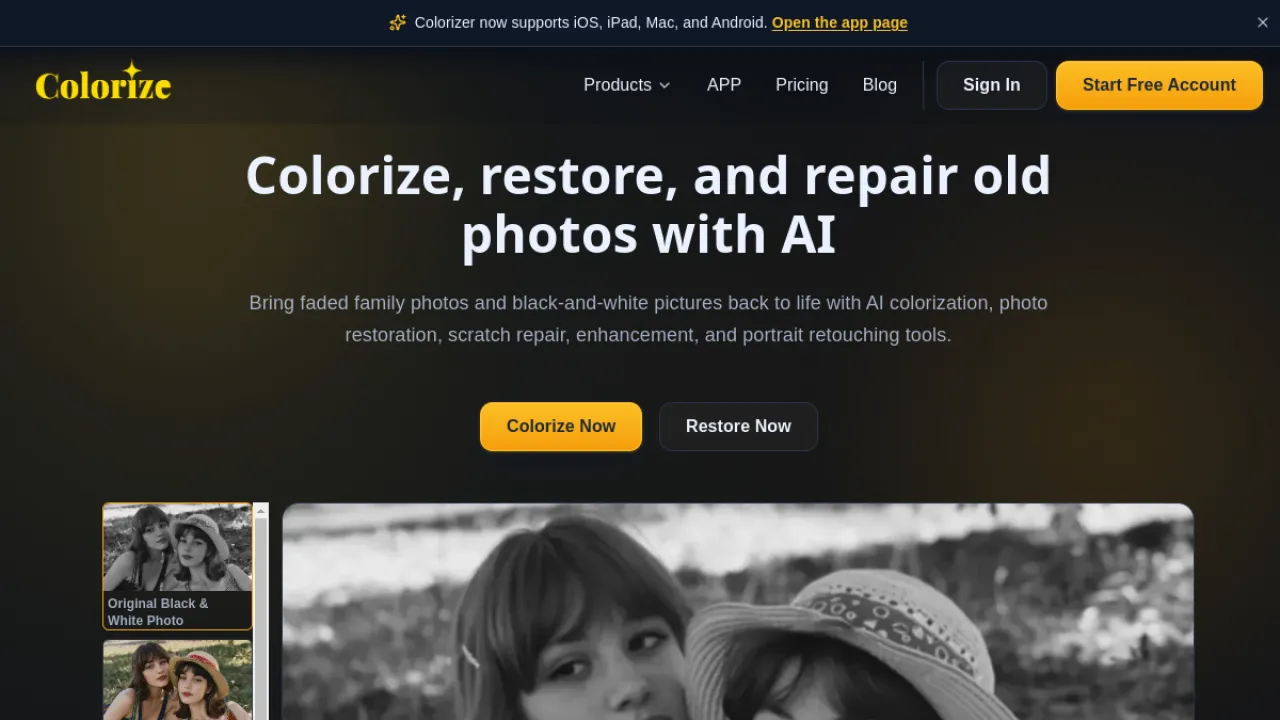
ImageColorizer is purpose-built for colourising black-and-white photographs, with scratch, tear and damage repair, blur and low-resolution enhancement, and natural portrait retouching, on web and mobile.
Being purpose-built shows in the results: general tools colourise cautiously and produce washed-out sepia; this produces plausible colour.
Remember that colourisation is inherently invention — nobody knows what colour that dress was — so treat the output as an interpretation rather than a recovery.
Quality varies on severely damaged photos, and higher volume needs paid credits.
Key Features
AI colorization of black-and-white photos
Scratch, tear and damage repair
Blur and low-resolution enhancement
Natural portrait retouching
Pros and Cons
Pros: Purpose-built restoration and colorization toolkit · Natural-looking face retouching · Available across web and mobile platforms
Cons: Quality varies on severely damaged photos · Higher volume and resolution need paid credits
Pricing
Freemium.
Type: generative · Best for: colourising historical photographs · Watch out: colour is interpreted, not recovered
Full ImageColorizer review · imagecolorizer.com
17. Aftershoot — The Whole Photographer Workflow
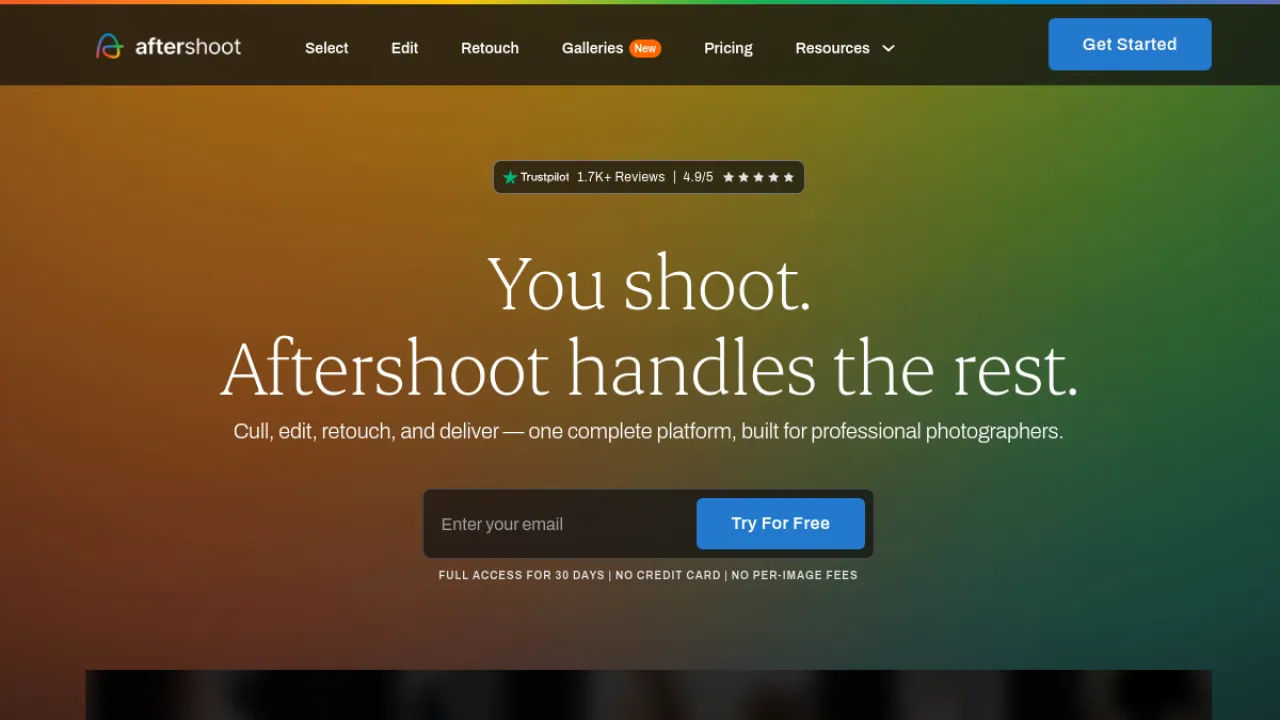
Aftershoot culls, detects duplicates, batch-edits in a style matched to your own, and retouches skin, blemishes and hair — priced flat and unlimited rather than per image.
Culling is where photographers actually lose time: three thousand frames from a wedding, most of them near-identical.
Learning and matching your editing style means the output looks like your work rather than like a preset.
Flat unlimited pricing removes the anxiety of a big shoot. The desktop app needs capable hardware, and output still benefits from review.
Key Features
AI photo culling and duplicate detection
Style-matched AI batch editing
AI retouching for skin, blemishes and hair
Flat unlimited pricing, not per image
Pros and Cons
Pros: Complete cull, edit and retouch workflow · Learns and matches the photographer's style · Predictable flat, unlimited pricing
Cons: Desktop app needs capable hardware · Output still benefits from review
Pricing
Subscription, flat unlimited.
Type: reconstructive workflow · Best for: high-volume event photography · Watch out: hardware requirements
Full Aftershoot review · aftershoot.com
18. Nightjar — Consistency Across a Product Catalogue
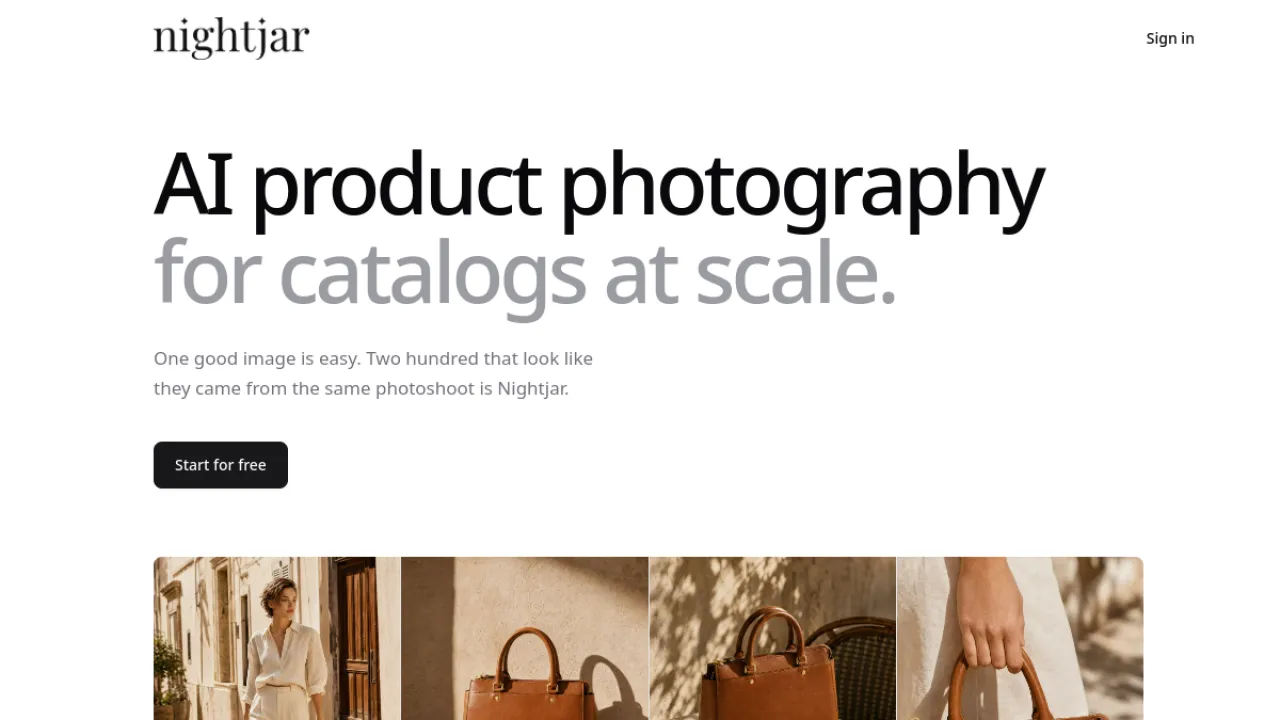
Nightjar generates product photography with saved Recipes that keep an entire catalogue visually consistent, plus text-based edits and recolouring, virtual try-on, background swapping and 4K upscaling.
The consistency engine is the point.
Individually good product images that do not match each other look worse on a category page than mediocre images that do.
Recipes solve that at catalogue scale.
It is specialised for product catalogues only, and outputs need review for product accuracy — the generative caveat applies directly when the image represents something a customer will buy.
Key Features
Saved Recipes for catalog-wide consistency
Text-based edits and recoloring
Virtual try-on and background swapping
4K upscaling
Pros and Cons
Pros: Consistency engine keeps catalogs cohesive · Far cheaper per image than studio shoots · Team collaboration with shared assets
Cons: Specialized for product catalogs only · Outputs may need review for product accuracy
Pricing
Subscription.
Type: generative · Best for: consistent e-commerce catalogues · Watch out: verify product accuracy
Full Nightjar review · nightjar.so
19. Picwand — Photo and Video in One Kit

Picwand covers enhancement and upscaling, colourisation and restoration, object removal, and extends into image-to-video and text-to-video generation.
Adding video generation to a photo enhancement tool is unusual and useful if you are producing social content from a stills archive.
Individual tools are less specialised than dedicated apps, and premium quality needs paid credits. Free starter credits let you assess it properly.
Key Features
AI photo enhancement and upscaling
Image colorization and restoration
Object removal
Image-to-video and text-to-video generation
Pros and Cons
Pros: Versatile photo and video toolkit · Useful restoration and colorization · Free starter credits
Cons: Some tools less specialized than dedicated apps · Premium quality needs paid credits
Pricing
Freemium.
Type: mixed · Best for: stills plus short video output · Watch out: less specialised per tool
Full Picwand review · picwand.ai
20. Bazaart — Editing Plus Design Templates

Bazaart combines background and object removal, text-to-image and AI restyle, AI product photos and scene generation, with template-based design for social, print and ads, on web and mobile.
Going from an enhanced photo to a finished social post inside one app removes a handoff that usually costs more time than the enhancement itself.
The product-photo features are strong for small sellers. Best AI features need a subscription, and it is less precise than a dedicated desktop editor.
Key Features
AI background and object removal
Text-to-image generation and AI restyle
AI product photos and scene generation
Template-based design for social, print and ads
Pros and Cons
Pros: Broad all-in-one toolset for editing and design · Beginner-friendly interface on web and mobile · Strong product-photo features for sellers
Cons: Best AI features require a paid subscription · Less precise than dedicated desktop pro editors
Pricing
Freemium.
Type: mixed · Best for: photo to finished social asset · Watch out: less precise than pro editors
Full Bazaart review · bazaart.com
21. Retouch4me — Plugins That Do One Thing Exactly
Retouch4me is a set of Photoshop plugins: Apex as an all-in-one with real-time preview, Arams for culling and batch processing, and task-specific plugins for Heal, Dodge and Burn, and Skin Tone, all with layer control.
Working as layers inside Photoshop is what makes this professional-grade — you can dial the effect back, mask it, or discard it, rather than accepting a flattened result.
Skin texture is preserved rather than smoothed away.
It is technical and aimed at professionals, and buying multiple plugins gets expensive, though lifetime licences are available.
Key Features
Apex all-in-one plugin with real-time preview
Arams AI culling and batch processing
Task-specific plugins (Heal, Dodge and Burn, Skin Tone)
Photoshop integration with layer control
Pros and Cons
Pros: Precise task-specific retouching plugins · Preserves natural skin texture · Lifetime license options available
Cons: Technical and geared toward professionals · Buying multiple plugins gets expensive
Pricing
Paid, lifetime options.
Type: reconstructive retouching · Best for: retouchers working in Photoshop · Watch out: costs stack per plugin
Full Retouch4me review · retouch4.me
22. Sparkpix.ai — Editing by Typing
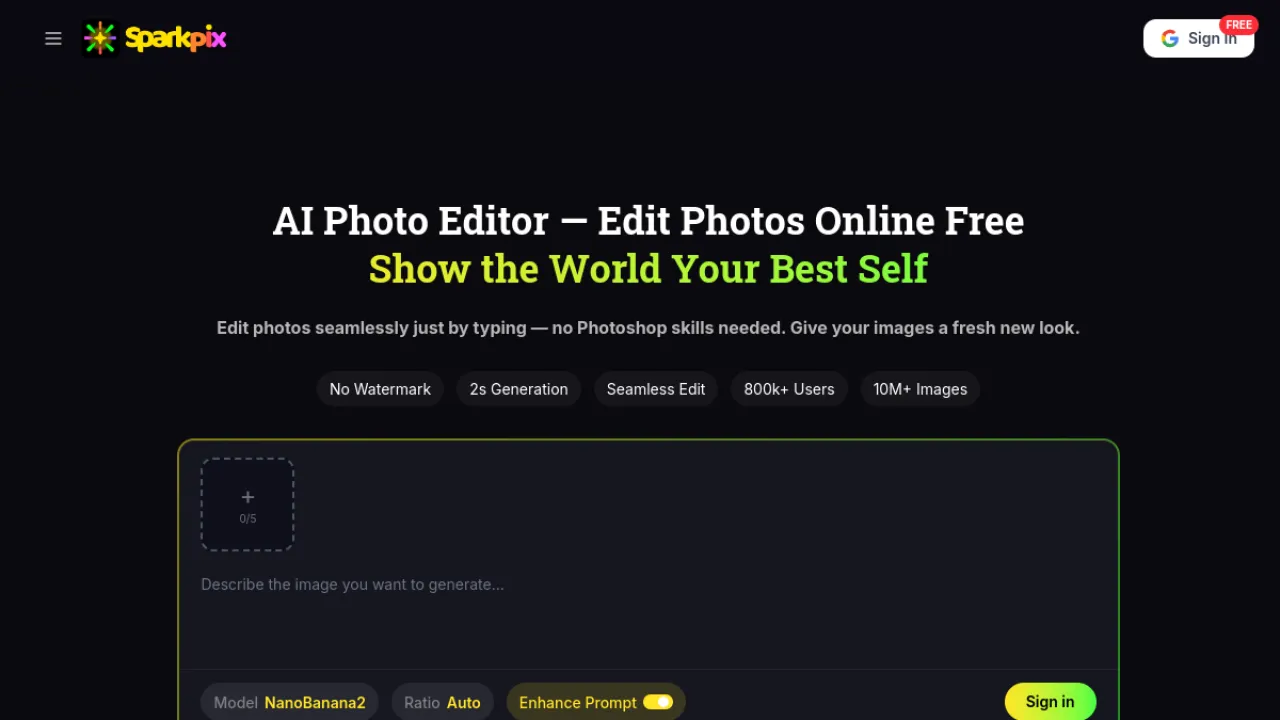
Sparkpix takes natural-language commands to drive over 100 tools — background and object removal, restoration and colourisation, upscaling, unblur and sharpening.
Describing the edit instead of finding the right tool is a genuine accessibility win for people who do not know photo-editing vocabulary.
Pay-as-you-go credits mean no forced subscription, which suits occasional use.
Free trial output is watermarked, and heavy editing means buying more credits.
Key Features
Natural-language text-command editing
Background and object removal
Photo restoration and colorization
AI upscaling, unblur and sharpening
Pros and Cons
Pros: Very broad all-in-one toolset · Beginner-friendly text-command interface · Pay-as-you-go credits without forced subscription
Cons: Free trial output is watermarked · Heavy editing requires buying more credits
Pricing
Freemium, pay-as-you-go.
Type: mixed · Best for: editing without knowing the terminology · Watch out: watermarked free output
Full Sparkpix.ai review · sparkpix.ai
23. WearView — Fashion Photography Without the Shoot
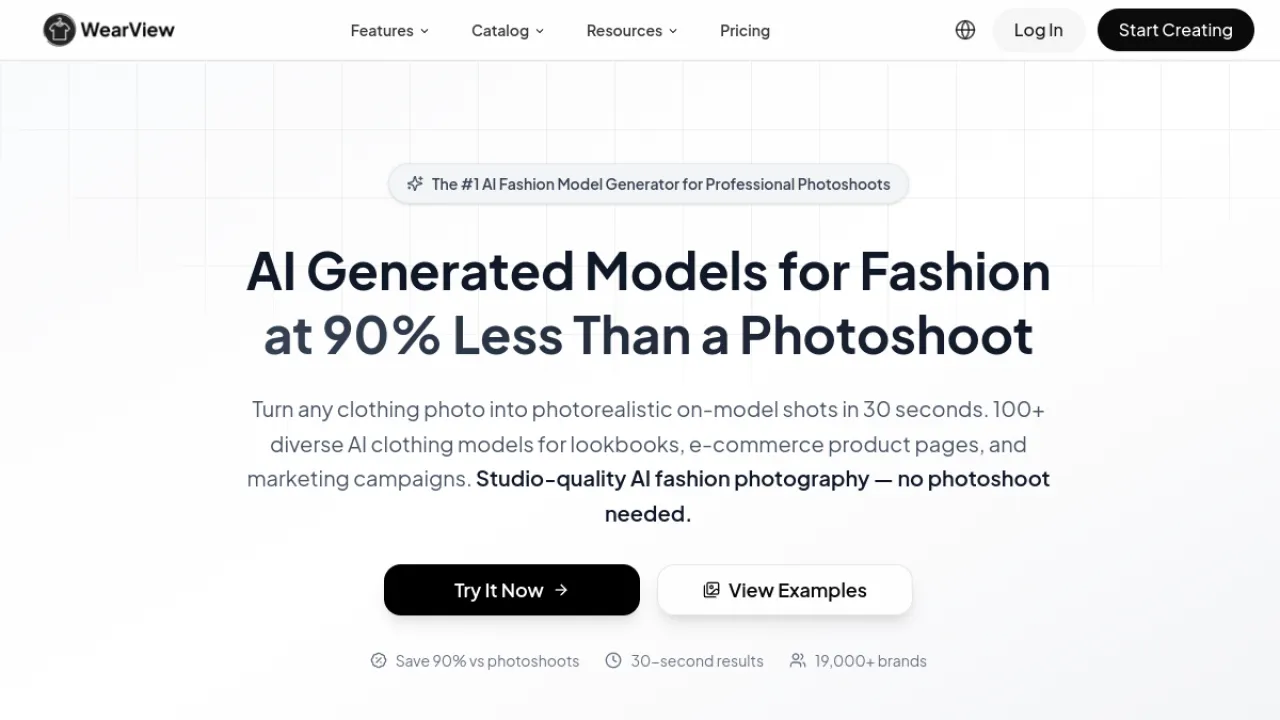
WearView turns a garment photo — flat-lay or on a hanger — into an on-model studio image, with virtual try-on across diverse AI models and custom model creation by description, including control over ethnicity, age and body type.
Replacing a fashion shoot is a large cost saving for small apparel brands, and the diversity controls let you show a garment on bodies that match your customers rather than one idealised model.
Narrowly focused on apparel, and generated fit needs review on complex garments — draping and structured tailoring are where it struggles.
Key Features
Garment photo to on-model studio image
Virtual try-on on diverse AI models
Custom AI model creation by description
Product-to-model from flat-lay or hanger
Pros and Cons
Pros: Replaces costly fashion photoshoots · Control over model ethnicity, age and body type · Fashion-specific tooling rather than generic generation
Cons: Narrowly focused on apparel and fashion · Generated fit may need review on complex garments
Pricing
Subscription.
Type: generative · Best for: small apparel brands · Watch out: check fit on complex garments
Full WearView review · wearview.co
24. Aiarty Image Enhancer — Desktop, up to 32K

Aiarty is a desktop upscaler claiming up to 32K, with denoise, deblur and detail generation, face restoration, HDR conversion, object removal and colour adjustment.
Desktop processing means no upload and no per-image fees, and the extreme resolution ceiling matters for large-format print.
Note that "detail generation" is generative, so at very high magnification you are looking at invented texture.
Paid with no free tier, and there is real learning to get the best from it.
Key Features
AI upscaling up to 32K resolution
Denoise, deblur and detail generation
Face restoration and HDR conversion
AI object removal and color adjustment
Pros and Cons
Pros: Very high output resolutions up to 32K · All-in-one enhancement pipeline in one app · Offline processing keeps images private
Cons: Desktop download depends on local hardware · Free trial restricts exports until purchase
Pricing
Paid.
Type: generative at high magnification · Best for: large-format print output · Watch out: invented detail at extreme scale
Full Aiarty review · aiarty.com
25. Magnific AI — Invention as the Feature
Magnific is the purest generative upscaler here.
It does not merely enlarge — it adds texture, lighting and detail that were never in the source, with style-specific enhancement modes and high-resolution output.
On AI art and illustration the results are genuinely striking, turning a flat generated image into something with material depth.
That same behaviour makes it unsuitable wherever accuracy matters: it will invent details that are not real, confidently.
It is relatively expensive with limited free access. Use it where you want an artistic result, and use Topaz or Upscayl where you want a faithful one.
Key Features
Generative AI upscaling with added detail
Style-specific enhancement modes
High-resolution output
Texture and lighting creation
Pros and Cons
Pros: Striking added detail and texture · Wide range of style presets · Excellent on AI art and illustrations
Cons: Can invent details unsuitable for accuracy · Relatively expensive with limited free access
Pricing
Subscription.
Type: generative · Best for: AI art and illustration · Watch out: invents detail — never use for records
Full Magnific AI review · magnific.ai
Choosing Between Faithful and Flattering
Decide whether invention is acceptable. This is the first question, not the last. Family photographs, product images, documentation and anything evidential need reconstructive tools — Topaz, Upscayl, Bigjpg, Icons8. AI art, marketing imagery and social content can use generative ones — Magnific, Remini, jpgHD.
Check where your images are processed. Upscayl and Topaz run locally, so nothing uploads. Everything else is a cloud service, which for personal photographs or NDA client work is a decision you should make deliberately. Imglarger and Evoto publish deletion policies; most do not.
Match the model to the content type. Photograph models damage illustration and vice versa. Bigjpg is the specific answer for anime and line art. Face-aware tools matter for portraits. A general upscaler on the wrong content type produces the worst results in this whole category.
Test on your worst realistic input. Every tool here looks impressive on a good source. The meaningful comparison is a heavily compressed, low-resolution, badly-lit image, because that is what you actually needed help with.
Work out cost per image at your volume. Free tiers, credit systems, flat subscriptions and one-time purchases diverge sharply once you are doing hundreds of images. Aftershoot's flat unlimited and Topaz's one-time purchase behave very differently from credit-based cloud services at scale.
Upscaling Questions Worth Asking First
What Is the Best Free AI Image Upscaler?
Upscayl — open-source, unlimited, no watermarks, and it runs offline on your own machine so nothing uploads.
If you would rather not install anything, ImgUpscaler works free in the browser with no signup, and Upscale.media has a usable guest tier.
Can AI Really Recover Detail From a Blurry Photo?
Not exactly, and the distinction matters.
Reconstructive tools recover detail that is genuinely encoded in the pixels but obscured by noise or compression.
Generative tools invent plausible detail that was never captured.
Both look like "recovery"; only one is. For anything that documents reality, use the first kind.
Will Upscaling Change How a Person Looks?
It can, particularly with face-reconstruction tools.
Remini is the notable example — its results are dramatic, and aggressive reconstruction can alter someone's likeness enough to matter.
Always compare against the original at full size before replacing an archived photograph, and keep the original regardless.
Which Upscaler Is Best for Anime or Illustration?
Bigjpg, which runs a separate model specifically for artwork.
Photo-trained upscalers add noise to flat colour areas and soften line work, which is exactly wrong for illustration.
Upscayl also ships anime-appropriate ESRGAN models if you prefer a free local option.
How Much Can I Enlarge an Image?
Technically some tools here claim 16K or 32K.
Practically, 2x to 4x from a decent source gives reliable results; beyond that you are increasingly looking at invention rather than enlargement.
Start from the highest-resolution original you have rather than upscaling something already downscaled.
Is It Safe to Upload Personal Photos to These Tools?
It depends on the service, and you should check rather than assume.
Look for a stated deletion policy — Imglarger deletes after 24 hours, Evoto deletes after processing.
For genuinely private material, family archives or client work under NDA, use a local tool: Upscayl is free and Topaz is paid, and neither uploads anything.
Comparing further? Browse the full image and design category in the directory to filter by pricing and processing type.
About
Daniel Reed
Senior AI Tools Reviewer
Daniel reviews AI tools the slow way — by actually using them on real projects. His reviews cover what works, what breaks, and who each tool is genuinely a good fit for.
View profile

